How Importism works
Importism connects your external data sources to Google Sheets. You choose the sheet, map the columns you want, and sync on demand or on a schedule. No code required.
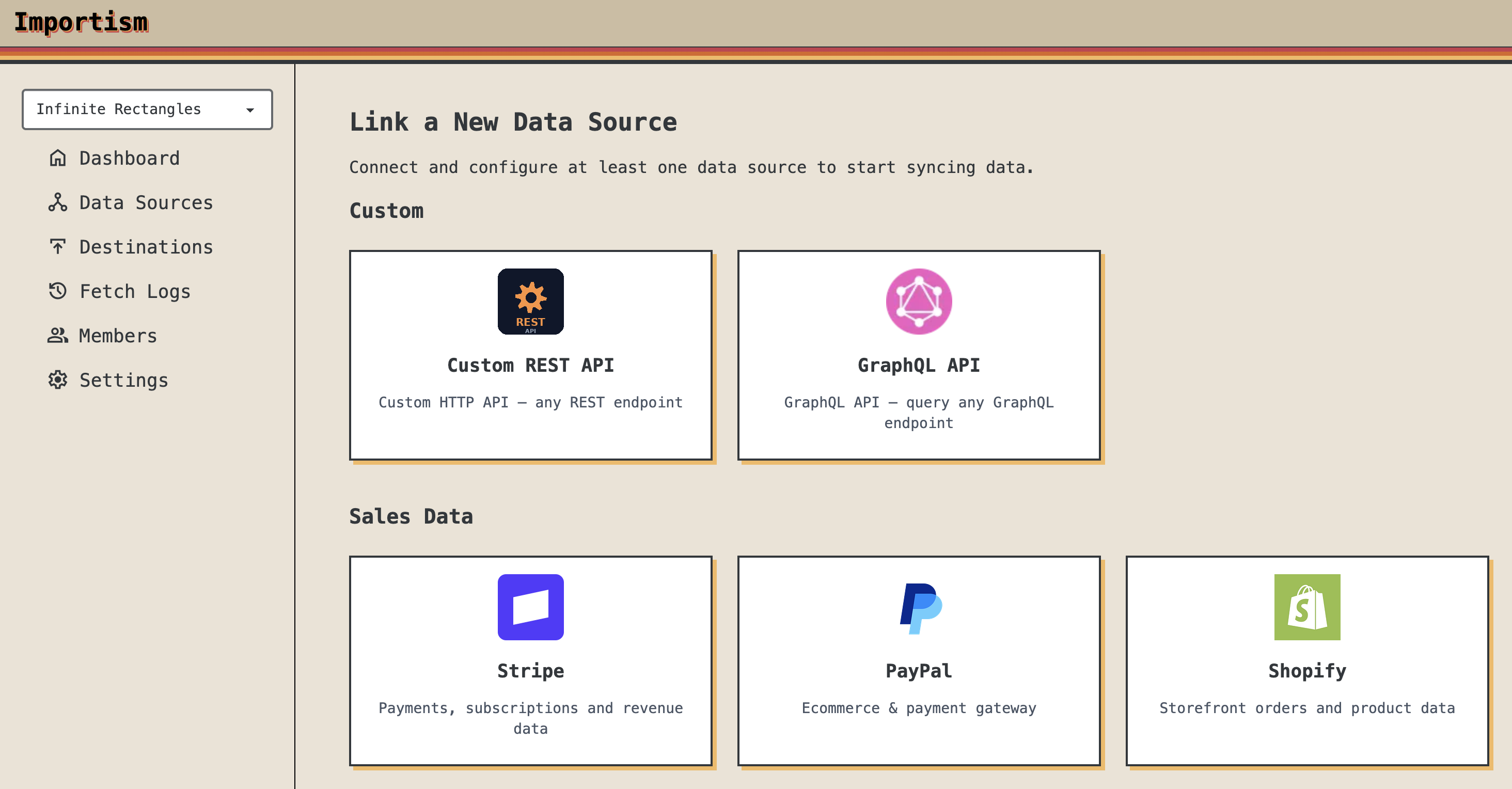
Connect a data source
Add a data source from your Importism dashboard: Stripe, Shopify, PayPal, a custom REST API, or a GraphQL endpoint. Authenticate once with OAuth or an API key. Your credentials are stored securely and used only to fetch the data you request.
Pick a dataset and your Google Sheet
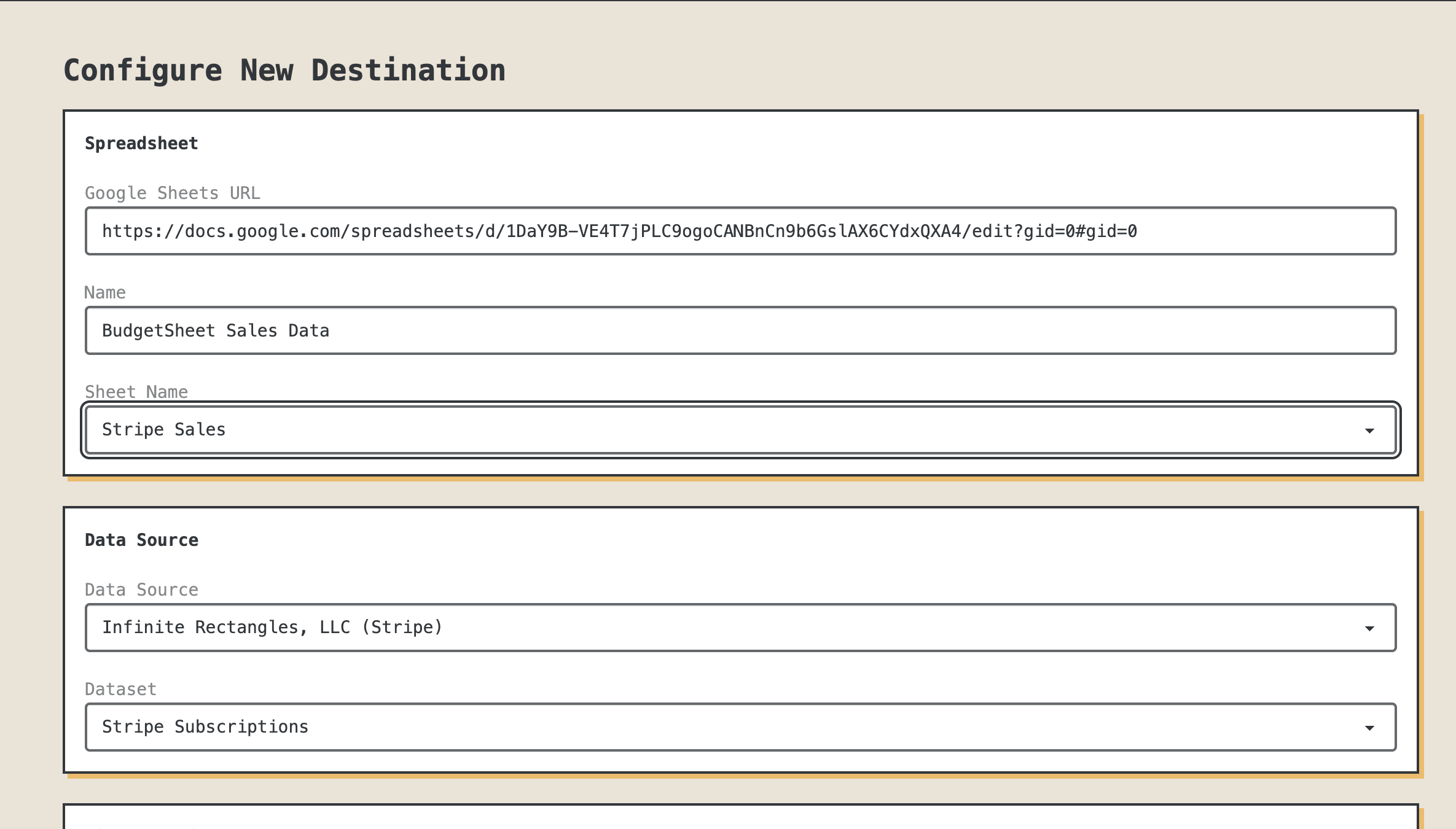
Each data source exposes one or more datasets (e.g. Stripe Customers, Shopify Orders, PayPal Transactions). You choose which dataset to sync and which Google Sheet (and optionally which tab) should receive the data. Any sheet you can edit in Google Drive is supported.
Map columns your way
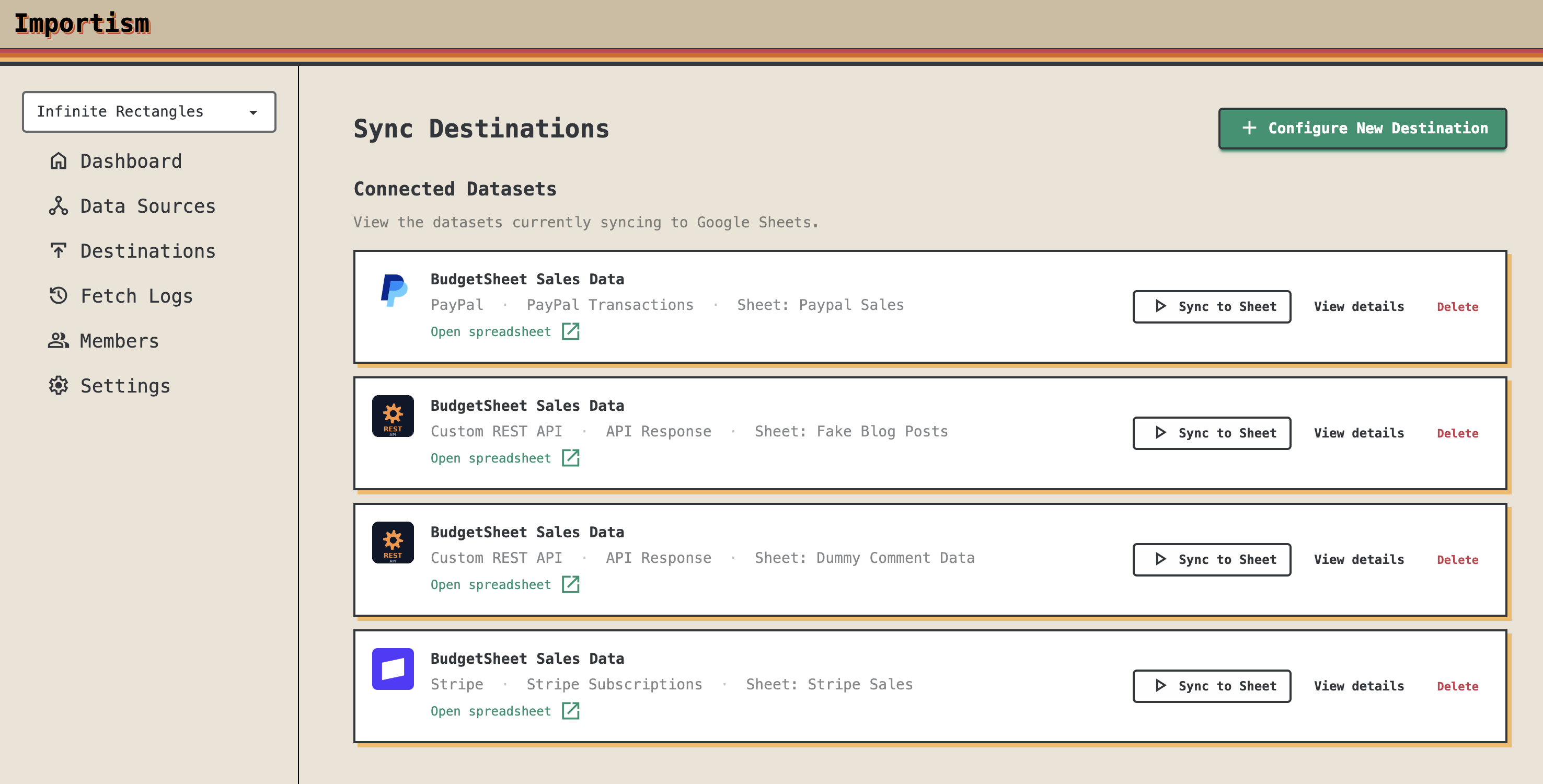
You decide which fields from the dataset map to which columns in your sheet. Pick from the available fields (IDs, dates, amounts, status, etc.) and assign them to column letters (A, B, C…) or headers. Reorder and omit fields as needed so the sheet matches how you want to work.
Nested fields are supported via dot notation (for example, customer.address.city), and Importism preserves data types when inserting rows into
your sheet: dates stay dates, amounts and numbers stay numeric, booleans stay true/false, and text stays text – no more "everything is a string" problems.
Sync on demand or on a schedule
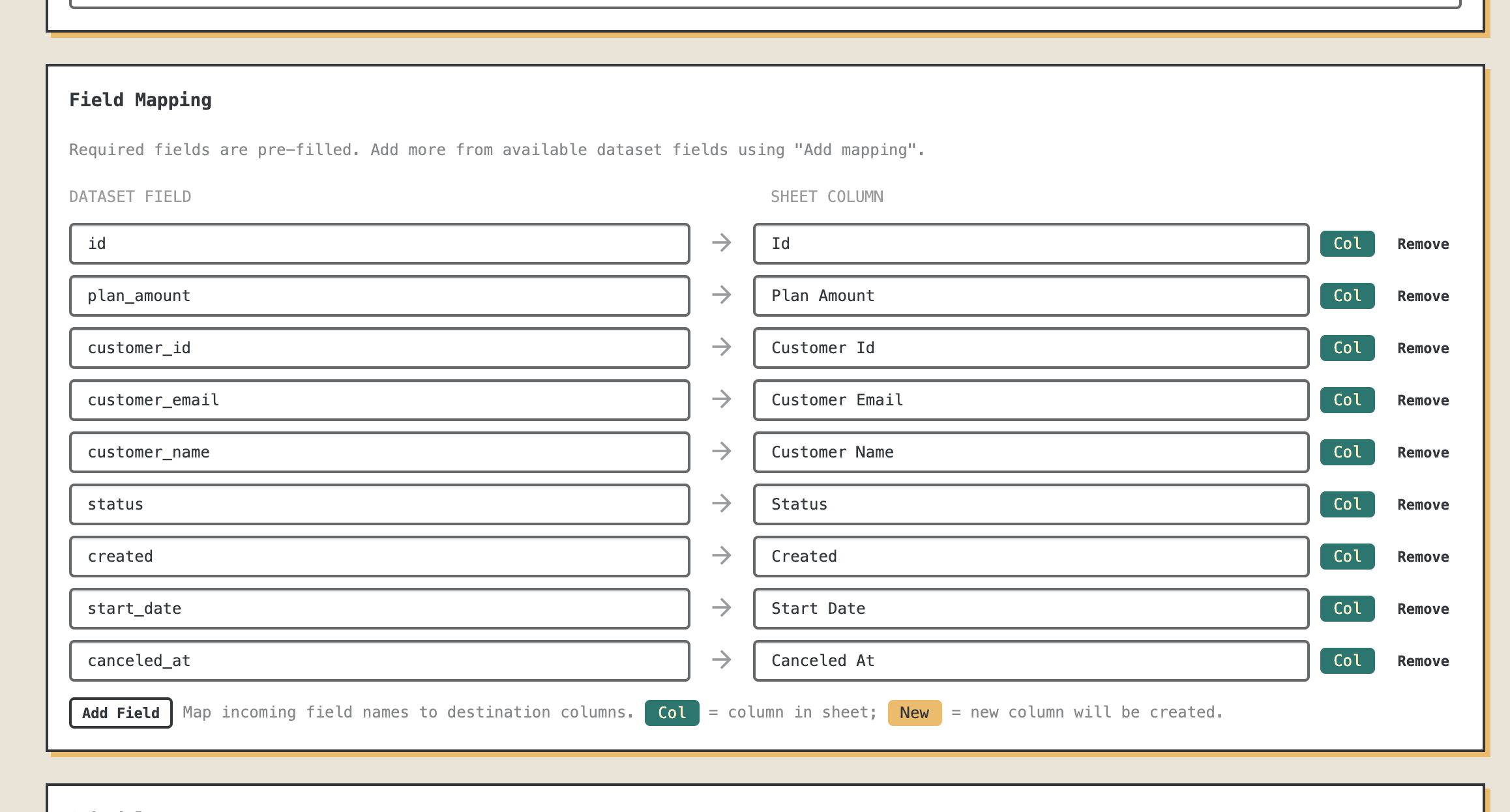
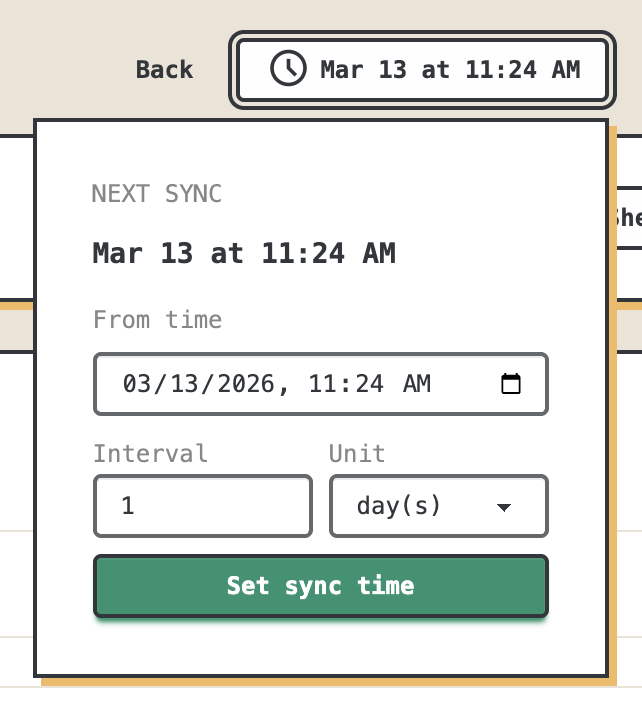
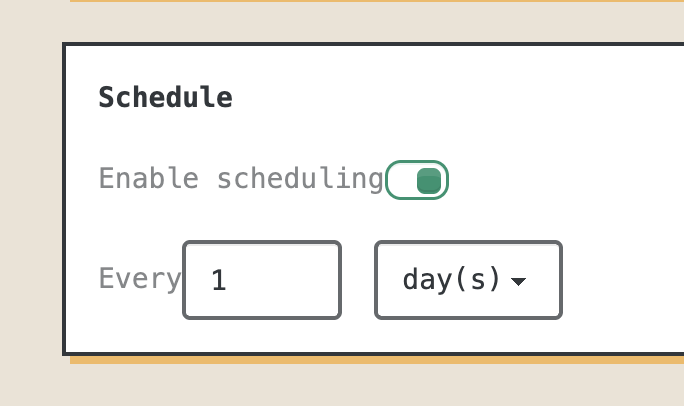
Run a sync whenever you want from the dashboard, or set a schedule (e.g. every hour, daily, weekly). Importism fetches the latest data, writes it to your sheet according to your column mapping, and can notify you if a sync fails. Your sheet stays up to date without manual exports or copy-paste.
View fetch logs – see every data flow
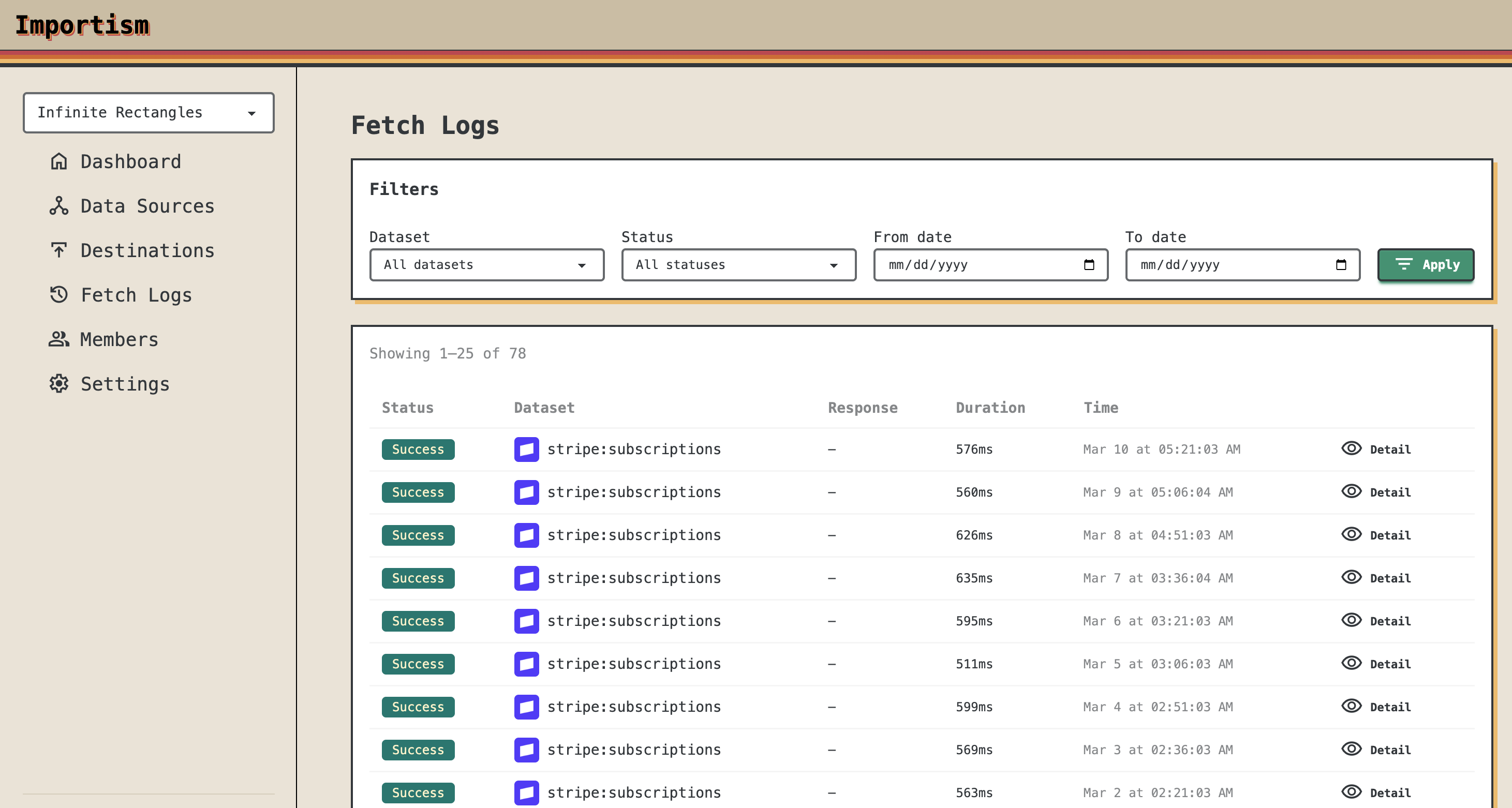
The fetch log shows every sync that has run: which data source and dataset was pulled, which destination (Google Sheet) received the data, and exactly when it ran. You can see success and failure status, drill into any run for details, and audit your data flows so you always know where your sheet data came from and when it was last updated.
In short
- check_circle Connect Stripe, Shopify, PayPal, REST APIs, GraphQL, and more.
- check_circle Send data to any Google Sheet you choose.
- check_circle Map source fields to the columns you want.
- check_circle Sync manually or automate on a schedule.
- check_circle View fetch logs to see what data was pulled from where and when.
Create a free account to connect your first data source and sync into Google Sheets.